Fluxbox: From window manager to desktop environment
fluxbox bits and bobs
Fluxbox is a window manager for unix like operating systems - Linux for example. Fluxbox comes with
quite a number of Linux distributions. For me fluxbox is the window manager that fits best to all my needs.
While I am a native German speaker, You must live with my insufficiancy about the English language
if You decide to read on. Of course, You could decide not to read on or switch to the German language on the
left side of this frameset if You are capable to understand German.
I started with Linux, after I was too much annoyed with the bluescreens of Windows 95.
They did not say anything about the fact that from one second to another nothing worked anymore.
So I switched to Linux - to the »Deutsche Linux Distribution« (DLD - German Linux Distribution).
That was quite adventurous for someone who came along all the way from DOS with WordPerfect to
Windows 3 with WordPerfect and Windows 95 with WordPerfect (yes, I used to be a text worker!) and now
somehow had to configure the device drivers for hard disks, soundcards, LAN and something called
the x-window. Somehow it worked.
Then the first desktop environments appeared. I disliked the Gnome footprint,
but then I left all window managers behind and worked with KDE1 and afterwards with
KDE2 and finally with KDE3. Most times that was satisfactory
for me.
Then KDE4 appeared. And most of what worked for me before no longer worked.
Gnome still had an ugly footprint. So I looked around. But LXDE,
RazorQT, later LXQT, XFCE, Cinnamon,
Mate, Budgie and company did not satisfy me - only some elements
of some of them I liked. So why not a simple window manager again - with some additions?
I decided to give fluxbox a try. It is fast, well documented, extremely flexible
and it does what I put into its configuration files.
Everything I will describe on this page has been done within Devuan. With
Debian all of this will work, too. With other from Debian derived OSes this will most
certainly work, too. It might be even similar with other Linux OSes, as long as they provide an X server. For me
Devuan has the advantage to get to work without systemd - systemd wants to do everything of the system in one place,
and for me that is too much and too complex.
On this page You will find several listings, mostly scripting files.
These listings and all other mentioned files on this site can be downloaded in one package:
sammlung-en.tar.gz
Installation and Start
1. Installation
Fluxbox is in the package sources. Just type apt install fluxbox as root. If You
do this in a minimal system without X, You have to install the x-window-system as well (
apt install xserver-xorg).
Systems that do not provide an X server, for instance Fedora, will not be suitable for
fluxbox.
2. Login Manager
As login manager I have been using xdm (apt install xdm) almost
for decades - with a short love affair with SLiM in between.
xdm might be a little bit ugly out of the box, but we can change that. xdm will here be complemented
with polybar, a simple bar down the screen to provide a menu to shutdown or reboot
the computer, to show a virtual keyboard, and to provide information about the battery level, date and time.
xdm will manage the desktop background, too. xdm can do all this because it is extremely flexible with scripting.
Let's start with the bar. Ich am using polybar (apt install polybar),
a quite simple bar. polybar will be configured through the file /etc/X11/xdm/polybar.ini
with the following content:
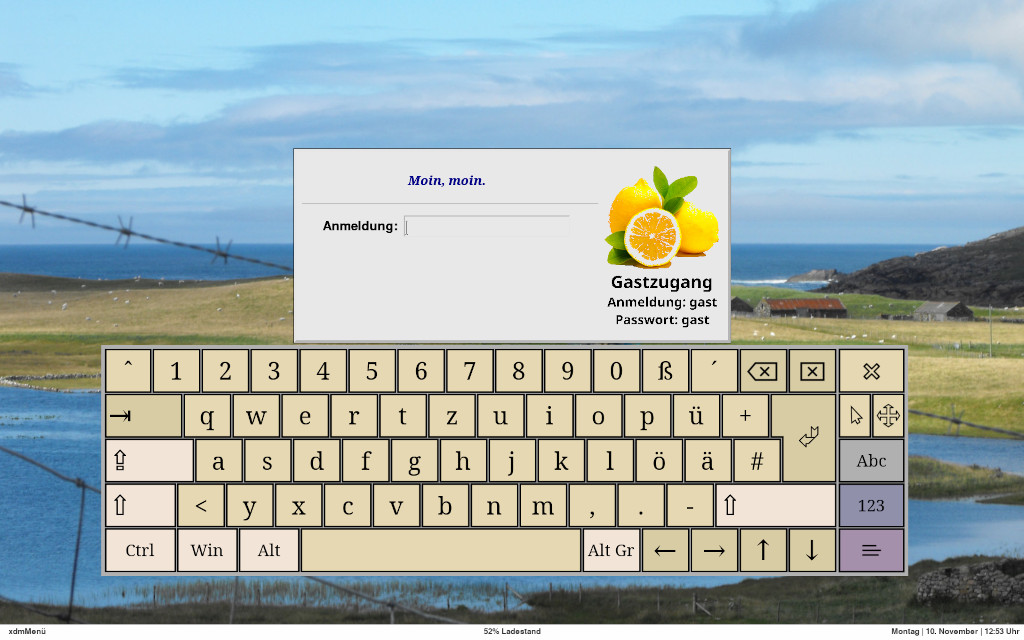
With this configuration polybar will need onboard as a virtual keyboard
(apt install onboard). We can drag it to a convenient size at the next login.
For taking a screenshot polybar uses scrot (apt install
scrot). It will save screenshots to the /root/pictures directory. Probably
You will have to create it.
For displaying the battery status polybar will need the script /usr/local/bin/ladestand.sh
. This script itself will need the package acpi (apt install
acpi):
Now to the desktop background picture. The used picture will be provided by feh
(apt install feh). To let this work properly with xdm and within fluxbox, there is the
xdm-hg.sh script.
This is its content:
It is important that this script is editable by any »normal« user, because the included picture file
may be changed through a normal user within a fluxbox session. Because of this I keep this script in a newly
created /usr/local/usrbin directory instead of the usual
/usr/local/bin directory. It is the only script in this directory - and all users must have the right
to edit it there.
To have this script executed during xdm login we have to place it in /etc/X11/xdm/Xsetup.
Here we place the start script of polybar, too - and this is what it looks like:
To stop polybar and the possibly started virtual keyboard onboard after the xdm login You should write
this to the file /etc/X11/xdm/Xstartup. This file contains some other rows as well
- this must be added:
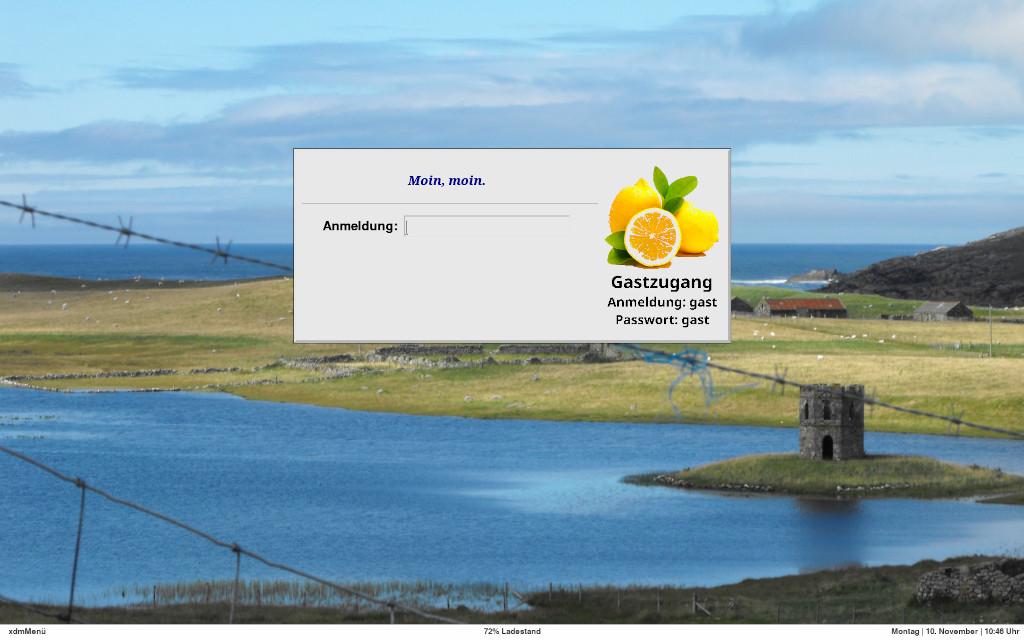
xdm login with polybar
xdm is not very proportionally looking out of the box within a Devuan/Debian environment. To make
it look a little bit better, we have already managed to set up a background picture. We should now change its
proportions and its used logo file as well. For this purpose I recommend the following changes in the file
/etc/X11/xdm/Xresources:
Watch: The file /etc/X11/xdm/Xresources contains in front of any content
45 (!) empty rows. Possibly these are important - keep them there.
It is important, that the logo picture file is in the directory
/usr/local/share/pixmaps/ as xdm.xpm in the .xpm graphics
format. Else xdm will not show a logo at the login.
This is it for xdm. Now we have created some initial premises for running fluxbox as a desktop environment.
xdm login with the virtual keyboard onboard and polybar
3. Start Fluxbox
If xdm does not start fluxbox automatically, You will need the following entry into the file
~/.xsession: exec startfluxbox. If there is no file ~/.xsession
yet, create it.
If You do not start Your x-window-system with the help of a login manager but use the startx
command the same entry must go to the file ~/.xinitrc. No problem occurs if You have both
files with the same entry.
Afterwards fluxbox will start automatically while booting Your computer when You are using Your x-window-system.
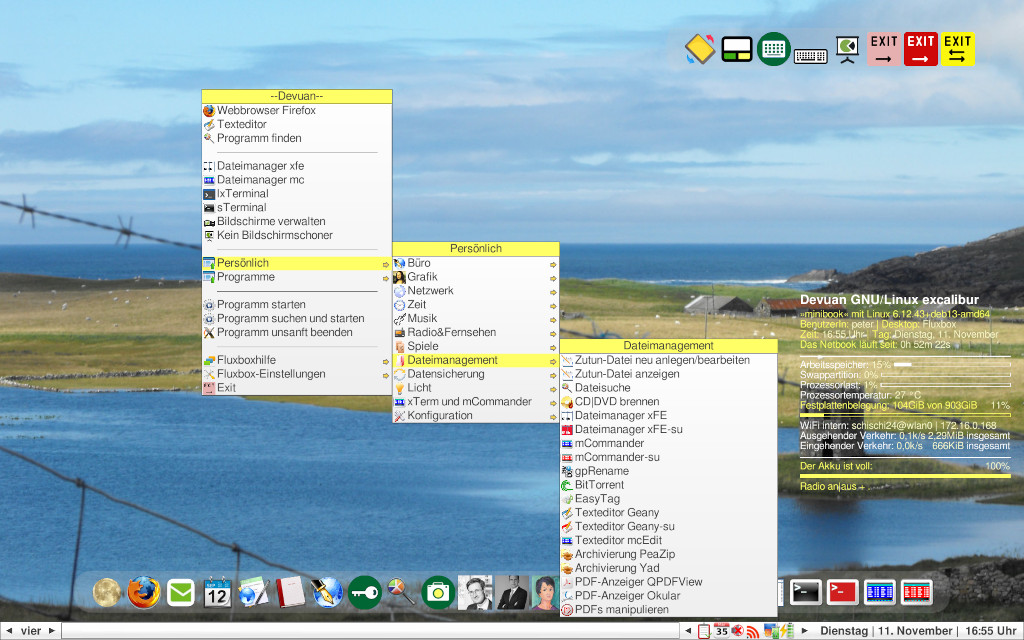
The best of fluxbox is its menu. You can access it at any free space on the desktop with the right key of the
mouse. We can adapt it to fit all our needs. But it will not be there out of the box - we will have to create it first.
For a start we should create a menu of all programs insalled on our computer (»root menu«).
There are two more or less simple possibilities to achive this. The first (a little unaccurate) can be done
by the script dt2fbmenu-en.sh (or dt2fbmenu-de.sh, if You like it
in German). You should choose this script only if You dislike the following slightly (really slightly) more complicated
alternative. Read about it and decide then.
You will find the script among the downloads.
It is still a simple act to create a »root menu« with the help of the script fbmenugen.
It is a perl script, but it can only do its work, if the following packages are installed:
apt install libgtk3-perl libdata-dump-perl libfile-desktopentry-perl libmodule-build-perl libxapp-gtk3-module. After this still
one perl module has to be installed manually. For this purpose we download the whole directory from
https://github.com/trizen/Linux-DesktopFiles
as a zip archive to ~/Linux-DesktopFiles-master. After that we move to this directory in a terminal
(xterm, st, lxterminal ...) cd ~/Linux-DesktopFiles-master and follow these steps as a
»normal« user:
After that we have to perform one final step as root from the same directory to move the perl module
to its place in the system:
This was the most complicated thing on this website. Relief! Now we need two files from
https://github.com/trizen/fbmenugen. We copy the file fbmenugen into the directory
/usr/local/bin and the file schema.pl to
~/.config/fbmenugen. The latter directory must be established first.
A »root menu« in German language will be created with the following line:
An English »root menu« will be created with the same line minus all substitutions through sed
:
The created »root menu« has now been established in our fluxbox directory ~/.fluxbox.
To make use of it we have to create two other menus.
Now we create the »main menu« of fluxbox, that will be the »mother menu» of the »root menu« and after that
the »personal menu«, which will contain all our most used programs in an order we like them.
The »main menu« is named simply menu and resides in the directory
~/.fluxbox - here is my personal example:
As we can see this »main menu« contains submenus named [submenu]. One of them is the
above created »root menu« with the name fbsysmenu. [submenu]
is one of the key words in the fluxbox menu system and points from the active menu to a reachable submenu.
We will create another submenu named personal in the ~/.fluxbox
directory. This will be the menu fitting best to our personal liking. Here is mine:
Here are the fluxbox menu rules:
A # in front of a menu row deactivates the entry.
[exec] marks a program or script. The round brackets () surround
the name of the entry and can be chosen freely. The curly brackets {} surround the place
where the program or script reside (the program/script with or without its path if the path is in the PATH variable).
The tag brackets<> surround the path to an icon.
[submenu] opens a submeuü with its name in brackets and the path to its icon in tag brackets.
[separator] separates one menu item from the next one.
[begin] marks the beginning of a menu or a submenu.
[end] marks the end of a menu or submenu.
[include] includes an extra menu file at this point.
[config] leads to the fluxbox configuration.
[stylesmenu] lets You chose a fluxbox style (theme).
[workspaces] configurates the virtual Desktops of fluxbox.
[reconfig] aktivates changes in the fluxbox config files.
[restart] restarts fluxbox.
The fluxbox menu
Now we should have a working Linux with xdm as login manager and fluxbox as window manager.
Of course we can develop this system much further - and this will be described now.
Notice: In the menu and the dock descripted further downside I often make use of a wrapper to start
programs as superuser in the X environment named sux and
suxterm). suxterm used to be a Devuan/Debian package but is no longer
available. I think it makes Linux life easier - so here it is to download:
sux_1.0.1-6_all.deb. Install with
dpkg -i sux_1.0.1-6_all.deb.
Great Helpers
1. Icons
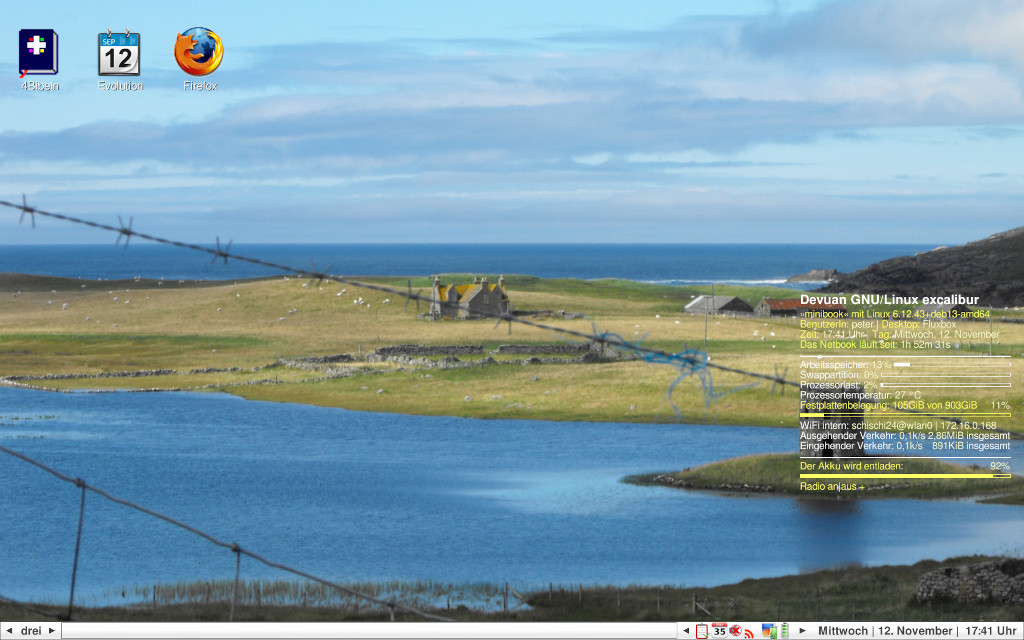
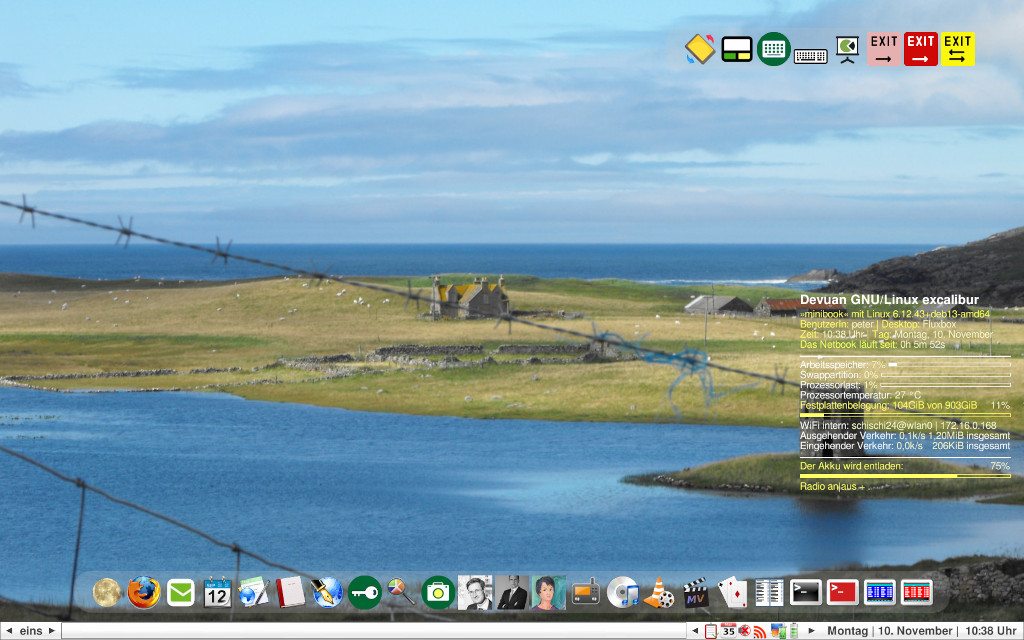
Coming from the world of Windows 95 I thought I would need many Icons on my desktop screen. I do not think
this any more. But of course, it is still possible. A long time ago I used idesk
for this purpose. It can be installed as root with apt install idesk. Configuring
idesk is quite a lot of work and patience. There is also vdesk as an alternative - but I did not try it.
Here is an example for an idesk configuration file ~/.ideskrc:
For every icon You will also need a lile in the directory ~/.idesktop with the
suffix .lnk like the following example:
You would have to calculate the X: and Y: values for every single icon to get them into the right
positions.
To start idesk together with fluxbox You should place the following row in
~/.fluxbox/startup:
This will only work if You provide the needed icons in /usr/local/share/icons/128/.
If You don't, idesk will not launch.
You will find all my collected icons as a .tar.gz archive at
icons.tar.gz.
fluxbox desktop with three icons provided by idesk
2. Dock
As an addition to the fluxbox menu I like a dock like in the MacIntosh world much better. The least RAM hungry dock I know
is the Warlock-Dock (apt install wbar).
If wbar is launched early it con leave unwanted artefacts on the desktop. So it should not be started in the file
~/.fluxbox/startup directly, but through a script /usr/local/bin/wbar.sh
with the following content:
Whether »sleep 3« (three seconds) is a reasonable time should be tested and perhaps changed.
Here is an example for a simple wbar configuration file ~/.wbar:
This requires the mentioned icons residing at /usr/local/share/icons/128/.
If they are not there, wbar will not start.
I like wbar. So I launch it a second time - now up right with the following configuration file
~/.wbarost:
This configuration launches wbar in the upper right corner. To launch wbar and wbarost with fluxbox
we need the following two rows in the file ~/.fluxbox/startup:
And here we have the second of the used scripts:
wbarost.sh
You will find all my collected icons as a .tar.gz archive at
icons.tar.gz.
fluxbox desktop mit the two wbar docks
3. File Manager
To use a file manager with fluxbox there are great choices. rox
(apt install rox-filer) and thunar (apt
install thunar) are good file managers with small footprints.
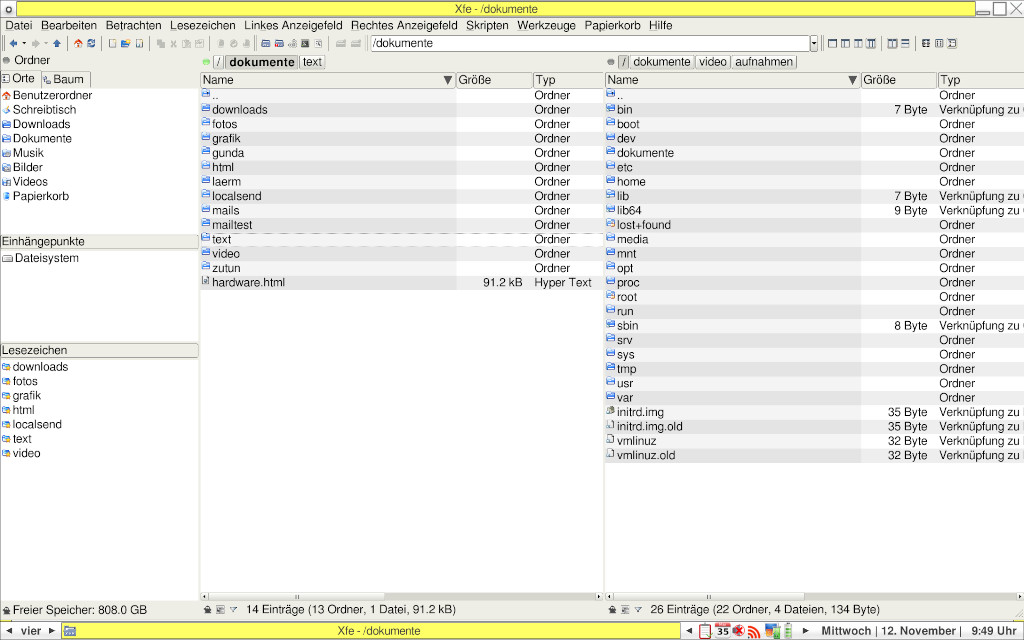
I prefer xfe (apt install xfe). It is capable of doing all
I expect of a file manager - at least when I actually need a graphical file manager. In most cases the Midnight Commander
in a terminal window is quite satisfactory.
Xfe can be launched this way:
In this case xfe launches with a directory tree lefthand, then with a list of the first given path and righthand a
list of the second given path.
A little trick: xfe has a mouse driven bookmark management. I find it laborious and inconvenient.
It is much simpler to make symlinks of Your most used directories and place them, for instance, into /documents/favorites.
Then You launch xfe with
Put xfe into the fluxbox menu this way:
For Wbar You would write the following to ~/.wbar:
file manager xfe
Small Helpers
Fluxbox has a toolbar with a systemtray trat is compatible with the freedesktop.org rules. Running programs can
dock here. We can use this for quite a number of small programs or scripts that make computer work life balance
easier. Some stuff of this kind is the following, as I think:
1. Mount
To integrate USB sticks, external hdds, CDs, DVDs, MMC cards and other media (even .iso files] into our file
system we can use udiskie (apt install udiskie). If we launch
udiskie with the -t option (for tray), we will have an icon in the systemttray that is capable to mount anything
in our file system. To unse udiskie the file ~/.fluxbox/startup should contain:
There is an alternative approach, too. Into the file ~/.config/udiskie/config.yaml
You could write
You will probably have to create this file. Within You can find some options about setting the appropriate
icons and our preferred file manager.
In this case we would launch udiskie in the ~/.fluxbox/startup file without the -t option.
2. Calendar
Fluxbox does not provide a calendar of its own if we click on the time in the system tray. I am using a self
made script with the help of the very mighty gtk script helper yad (yet another dialogue |
apt install yad). Yad is an enhanced alternative to zenity.
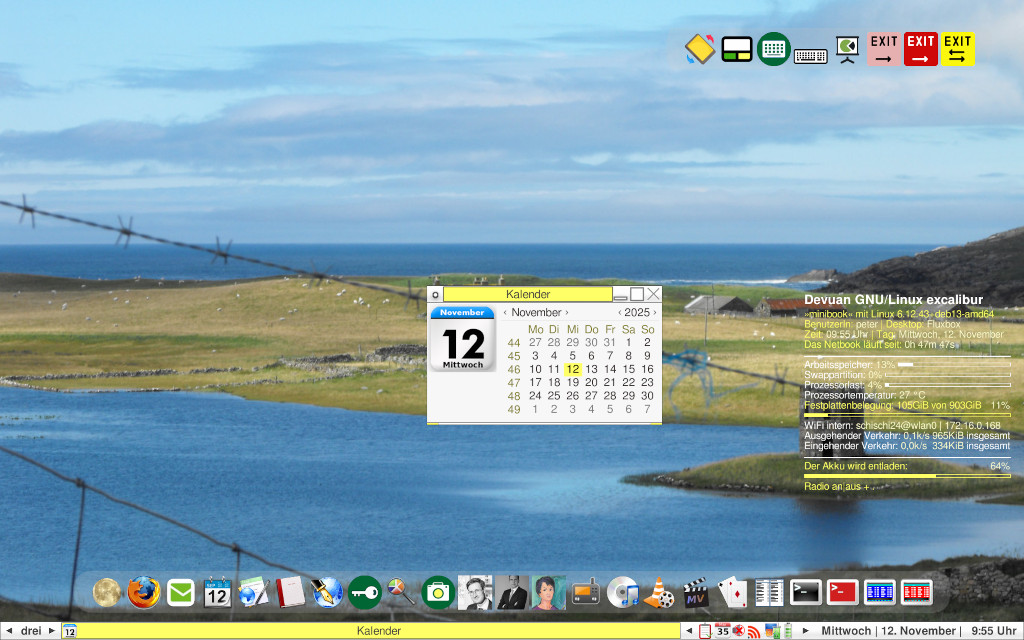
The script will show a calender icon in the system tray. If we click it a small calendar appears. If we click
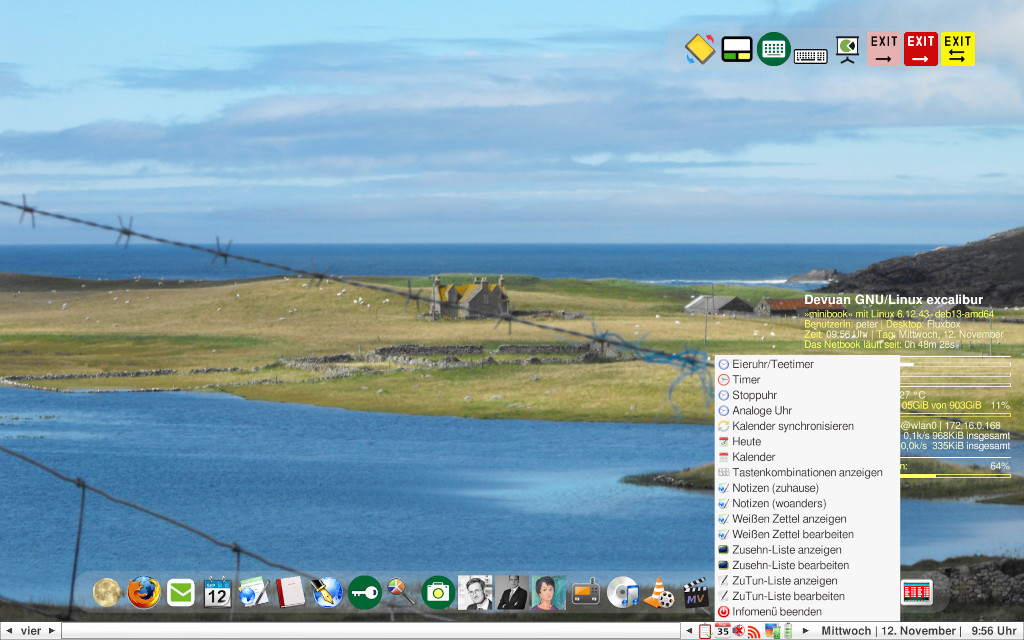
with the right mouse key, we can abandon the calendar and launch some more small helpers:
1. An egg-/tea timer
2. A timer
3. A stop watch
4. An analogue clock
5. A sheet with some Linux cheat codes
6. Notes
7. A white memo sheet and
8. its editing
7. A todo list and
8. its editing
Here is the script:
This is the way to get the script into ~/.fluxbox/startup:
fluxbox desktop with the calendar
This will only work if the needed icons reside in /usr/local/share/icons/128/.
You will find all my collected icons as a .tar.gz archive at
icons.tar.gz.
For the correct size of the tray icons yad needs some system wide installed icons, too. They are in the debian package
yadicons.deb (dpkg -i install yadicons.deb).
fluxbox desktop with the calendar menu
3. AudioCDs
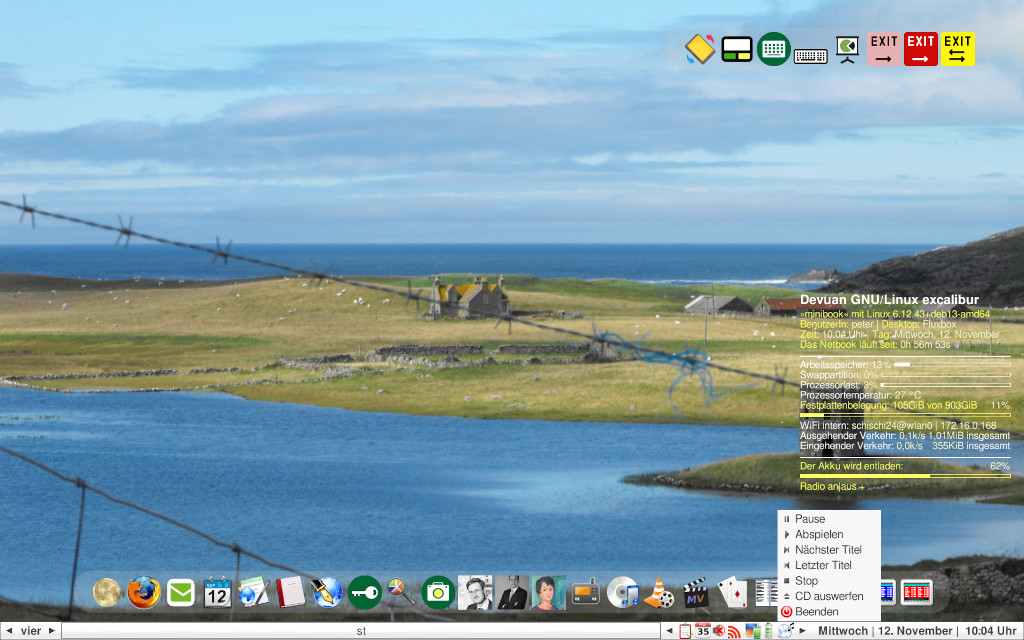
With yad we can write a small script to play AudioCDs, too. Here it is:
yadcd.sh needs cvlc (apt install vlc) and
playerctl (apt install playerctl). And yad, of course.
This is required to launch the menu in ~/.fluxbox/startup:
This requires the mentioned icons residing at /usr/local/share/icons/128/.
You will find all my collected icons as a .tar.gz archive at
icons.tar.gz.
the audio CD menu
4. Network Manager
A network manager is important, when fluxbox is running on a mobile device and we have to change the network
connection often. A classical program for this purpose is NetworkManager. It comes with an applet for the system tray
nm-tray (apt install nm-tray nm-tray-l10n).
Thera are alternatives, of course. With wicd (apt
install wicd) or connman/cmst (apt install cmst)
we can achive similar goals. I for myself prefer installing iwd with its frontend
iwgtk (apt install iwd iwgtk.
This would be the content of ~/.fluxbox/startup for a network applet (only
one of them, of course):
Iwd and iwgtk can only manage wifi connections. If You need a manager for ethernet connections I would
recommend ifupdown.
5. Volume
Dependent on the sound system we can establish an icon for the sound at system tray. If we use ALSA we could
use volumeicon-alsa (apt install volumeicon-alsa). In the
file ~/.fluxbox/startup we would write:
There are more audio applets for the system tray for other architectures and for alsa, too. I wrote a script
for this purpose myself - You will find it in the downloads for pulseaudio.
6. System Information
Fluxbox does not have a system to publish system informations. We can change that easily, though, with the help
of libnotify-bin (apt install libnotify-bin)
and dunst (apt install dunst).
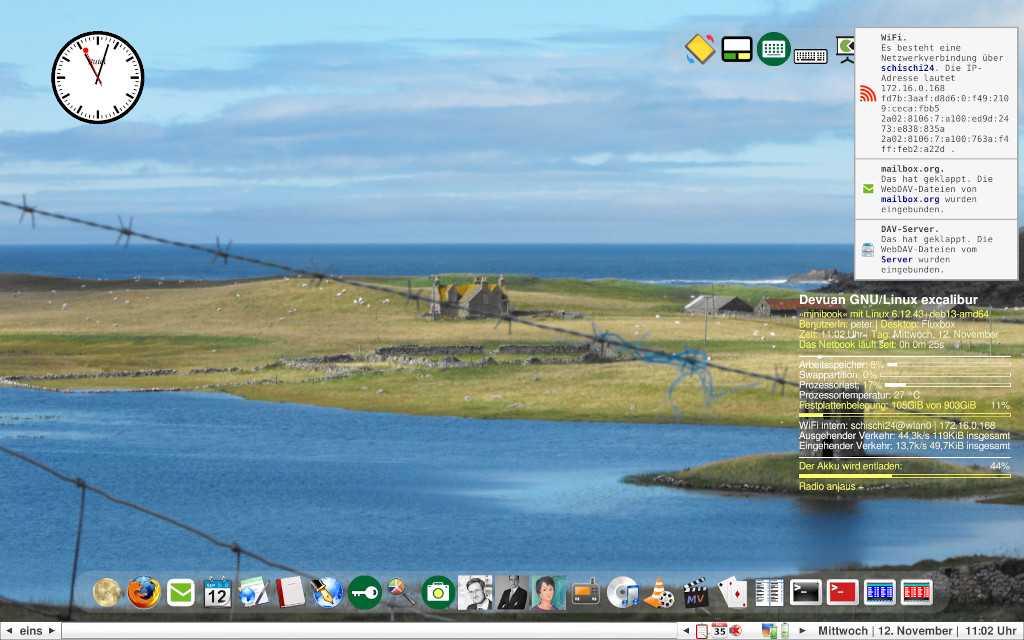
up right: system information with dunst (up left: buici-clock)
7. Clipboard
A clipboard works with fluxbox out of the box. To have it s little bit more comfortable we can install
qlipper (apt install qlipper). This would be the content
in the file ~/.fluxbox/startup:
8. Yellow pads
I like using yellow pads for often used but not very obvious texts and numbers - for instance my IBAN-No or the
IP address of my server. The simplest program for this purpos used to be xpad
(apt install xpad), but for the last years I could not get it working properly.
Because of this I relayed on the »white sheet« mentioned in the calendar script.
For those who still wish to try xpad this would be the content of ~/.fluxbox/startup:
9. System Menu
Usually I do not do screenshots - apart from some pictures for this website. Nevertheless, a good program for
this purpose is scrot (apt install scrot). We used scrot in our configuration for
xdm/polybar. Unlike some other screenshot programs (like flameshot (apt
install flameshot) we have to use scrot in the terminal or via script. One possibility to use scrot and many
other non-graphic programs can be accessed through an extra system menu with the help of yad.
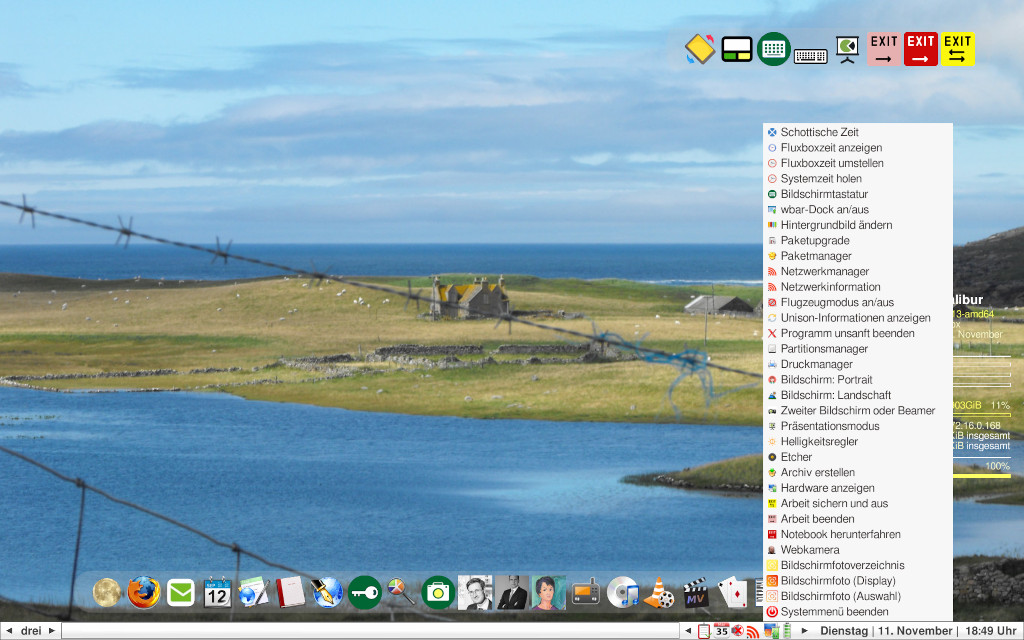
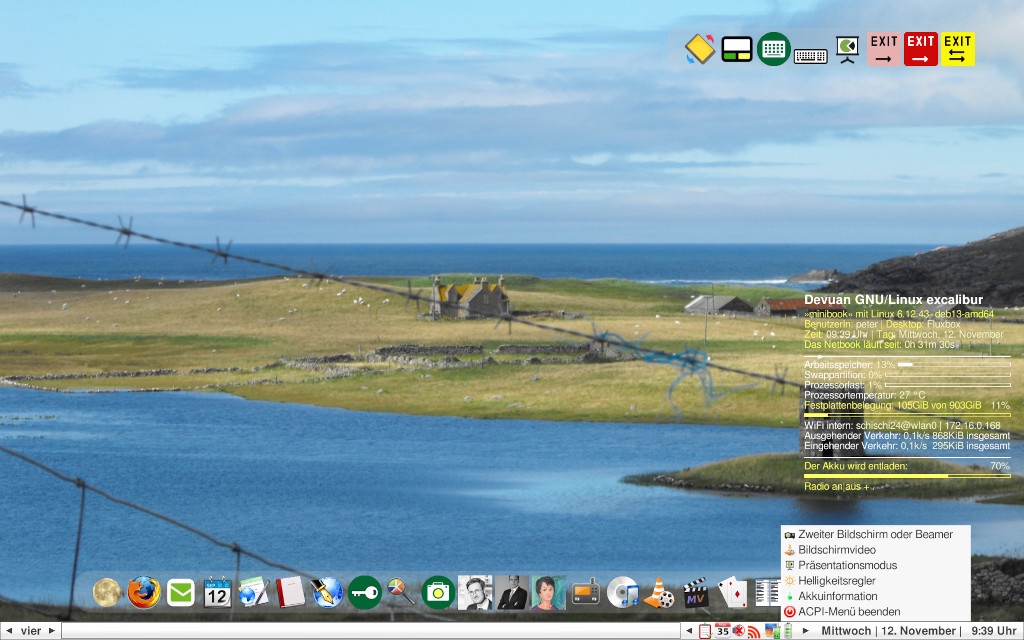
Yad helps us, like with the calendar script, to create such an extra system menu, than can be accessed with the
right key of the mouse - like this:
In the file ~/.fluxbox/startup You should put this:
fluxbox desktop with an extra system menu
10. Exit Fluxbox
We can exit fluxbox with its own root menu. If we use x with startx we will fall back to a
terminal screen then.
If we did start fluxbox with a login manager, this will appear again after we have left fluxbox.
That is is ok when we want to change the working user. But it is quite uncomfortable, if we had planned to shutdown our
computer. In the configuration mentioned above with xdm/polybar we would now have to click on the polybar menu and then click
»Shutdown«. There should be a simpler approach for this - and there is.
I like to have two small extra scripts in my menu and in my dock for shutdown options. One just to shutdown the
computer without any questioning and the other with some more options.
To let a »normal« user shutdown the computer the most simple way is to install sudo
(apt install sudo) and just allow it. We can do this on a desktop computer, a notebook oder
a tablet with a reasonable risk - on a backup server I would not do anything like this.
For shutting down our computer without a password sudo needs the following items in the file
/etc/sudoers:
It is very important that these rows are quite at the end of the file because sudo manages sudoing rights
from top to bottom of the file. Besides the file /etc/sudoers must be posessed
by the user root and its rights mast be 100440 - otherwise
they will not be processed.
This is the script yadlogout.sh that will probably work with every Linux system:
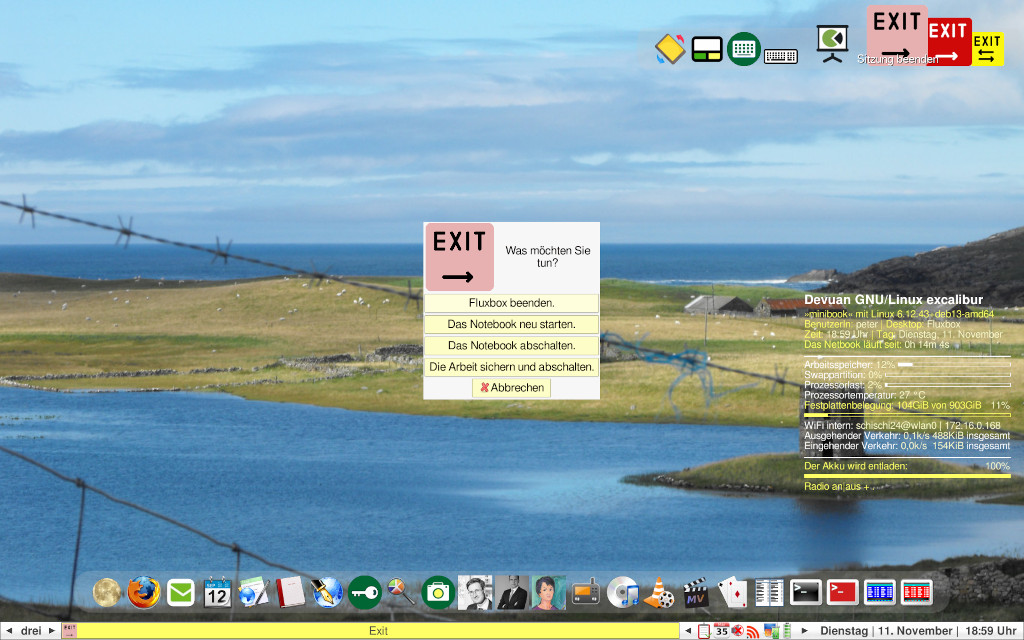
This is the script asking for options. »Exit fluxbox« will work only if the file~/.fluxbox/init
has a »true« in the following row:
fluxbox desktop with exit menu
And here is the shutdown script shutdown.sh without any questions:
In the menü You could place the two scripts like this:
And in wbar:
Some details to the fluxbox configuration files
1. Fundamental: ~/.fluxbox/init
The file ~/.fluxbox/init takes effect to the fundamental working of fluxbox as a window
manager. The file meets almost all our needs when it has been created by fluxbox.
Many modulations of the file can be made through a click with the right mouse button somewhere in fluxbox or through
the menu (see further down).
I see only very few needs to change the file ~/.fluxbox/init within an editor. One of them
we have already seen: To quit fluxbox out of an (external) (shutdown-)script ~/.fluxbox/init
should contain the following row:
The order of the elements in the toolbar can be changed here easily. I like it this way:
That's all, I think.
2. Menus: ~/.fluxbox/menu
This file describes fluxbox' »root menu« - see further above.
3. Programs: ~/.fluxbox/apps
The adjustments in the file ~/.fluxbox/apps I do not use much. But You can configure Your
fluxbox system in a very complex way with ~/.fluxbox/apps. It can make Your work much easier,
if You open different programs on different desktops (fluxbox: workspaces) in different sizes
and positions. With ~/.fluxbox/apps You can affect the look of programs and program groups.
There are many details in the manpage (man fluxbox-apps). Here are some examples:
You could open the first two terminals (more precisely: the first two programs having a *term or *Term in its name)
on workspace 3:
You could open the program geany with the size of 800x600, and after closing geany the closing size will be saved:
You could start firefox on workspace 1 and fluxbox goes to workspace 1:
You could start every aterm terminal without window decoration:
You could start every xterm maximized:
4. Keyboard: ~/.fluxbox/keys
The file ~/.fluxbox/keys helps with Your keyboard. You can use special keys from Your
notebook or multimedia keyboard with fluxbox or use the keys differently than the standard is or create key combinations
as shortcuts.
There are limits with the special keys, when the system does not recognize a key. For example I used to work with a
Lenovo x220 notebook with a blue key named »Thinkvantage« - even fluxbox could not handle it.
For the volume up, volume down and mute keys though there is a good chance to get them working.
Quite often these keys work »out of the box«. If that is so, nothing has to be done within
~/.fluxbox/keys.
But if they do not work, You can change them.
To get a key to work You must know what it does. You can find that out with the program xev
. Open a terminal, type xev and then push the key You want to find out about. In the
terminal quite some rows of text will appear.
Important is a phrase named "keycode nn" (while nn is a one, two or three-digit number). This keycode can be used to
get the right volume up, volume down and toggle keys to ~/.fluxbox/keys.
If You found out for example that xev recognized Your volume up key as keycode 123, the one for volume down as keycode 122
and toggle as keycode 121, You can put the following into the file ~/.fluxbox/keys:
This works with ALSA as sound system. With pulseaudio You could put in the following:
Similarly You could go on with other special keys.
You can put shortcuts to start a program into keys, too. The following entry starts Firefox wehen Strg-f is pushed:
Have in mind that »Control« and »Shift« are what they look like, but »Mod1« is the Alt key
and »Mod4« the windows or penguin key.
The file ~/.fluxbox/keys controls the mouse actions as well and can be used to
control all input in a very sophisticated way. For example You could control the fluxbox root menue on a Lenovo Yoga
11s Notebook/Tablet without the keyboard in funktion and only one key left under the touchscreen - let's say a key
with 188:
There are many examples in the file ~/.fluxbox/keys generated by fluxbox itself -
and more at the manpage (man fluxbox-keys).
5. Autostart: ~/.fluxbox/startup
The file ~/.fluxbox/startup determines which programs are started together with fluxbox
and at the end starts fluxbox, too - with or without a log file. Because the file is just a script it is crucial it
can come to its own end without an accident - otherwise fluxbox will not start. The basic rule for this is to start
all programs in ~/.fluxbox/startup in the background. This is all Linux, so that is easy:
All program calls in ~/.fluxbox/startup just need to have an »&« at their end. Further up
we did that with all entries to ~/.fluxbox/startup. Here is my ~/.fluxbox/startup sript:
Miscellaneous
1. gtk configuration
Now fluxbox works how we want it to work. What is missing is some consistent look of it. For gtk based programs we can
work with lxappearance (apt install lxappearance).
2. qt configuration
For qt based programs we can use qt5ct (apt install qt5ct) for
programs using qt5 and qt6ct (apt install qt6ct) for programs
using qt6.
This way we can have them in our menu:
3. fluxbox configuration (»Styles«)
Of course fluxbox itself can be styled. For this purpose we have the menu entry
styles. The style used in all screenshots of this website is not in the fluxbox package - I have created it
myself. It can be used for older screens with smaller resolutions as Zitronen-dekoriert and
for screens with a better resolution as Zitronen-dekoriert.1920x1080 or, without any graphic
elements, as Zitronen for all kind of screens. All three styles are in the download files. The
corresponding directories must be copied to the directory /usr/share/fluxbox/styles with
superuser rights and will afterwards be provided in the fluxbox styles menu.
A new style will change the appearance of Fluxbox immediately. Still, sometimes a full change can only be achieved
after a fluxbox restart.
4. System Monitor
Conky is a very flexible monitor for several data uf our computer. The file ~/conkyrc
configures conky that way it is shown in the screenshots:
We should launch conky with some delay with the following script /usr/local/bin//conky.sh:
This is the way to add conky to ~/.fluxbox/startup:
This requires the mentioned icons residing at /usr/local/share/icons/128/.
You will find all my collected icons as a .tar.gz archive at
icons.tar.gz.
5. Clock
If we would like to »android« the fluxbox desktop a little bit, we can install a clock. The one I am using sometimes
is called buici-clock (apt install buici-clock and can be
designed with the help of the following script /usr/local/bin/uhr.sh:
This script will be launched by fluxbox with the following row in ~/.fluxbox/startup:
For monitoring the battery of a notebook or tablet there are some simple tools in the Linux world, for example
cbatticon (apt install cbatticon) or
fdpowermon (apt install fdpowermon). Fdpowermon is a very easy tool - but near 100%
battery load it does not show an icon in the system tray. There are suspicions in the net fdpowermon is not working
properly, but it is. Fdpowermon is great.
Fdpowermon is a perl script. As I do not understand anything of perl scripts but like my battery monitor in German I
can not change it.
So I had to create something similar as a yad/bash script. Here it is:
And this is the way to get it into ~/.fluxbox/startup:
This script needs yad, acpi and the icons out of
yadicons.deb.
fluxbox desktop with battery menu
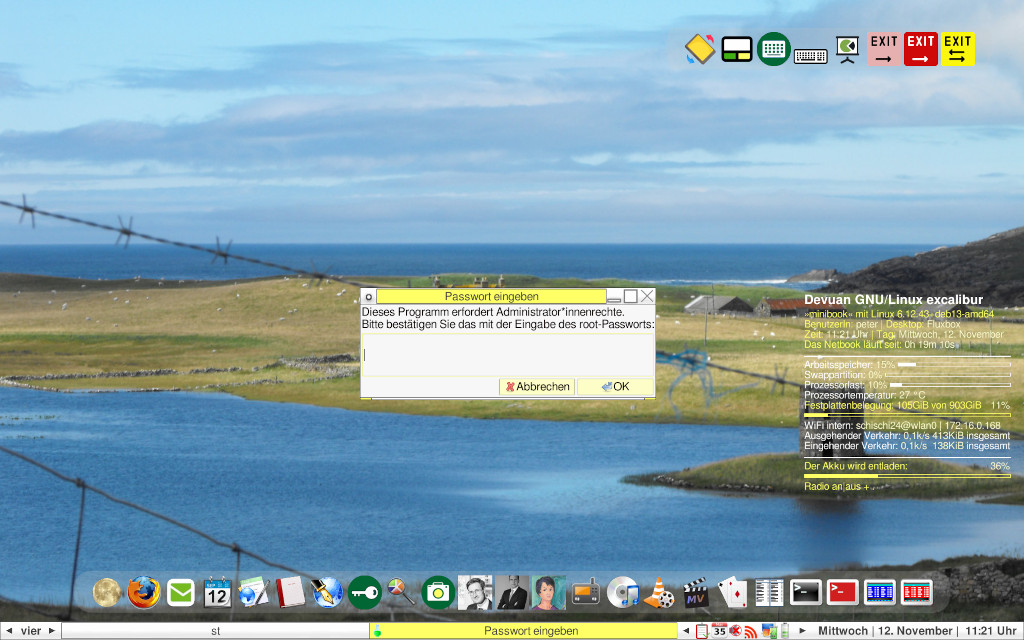
2. Sudo GUI
The tool to launch a graphical program in the xorg environment (the packet manager for instance) used to be gksu
for a long time. Gksu vanished from Debian like distributions quite a long time ago because of security risks. An
alternative to gksu is su-to-root (apt install su-to-root) or
the following yad script:
And this is its usage
If it is missing, it is our own password.
The script needs yad and sudo (apt install sudo).
fluxbox desktop with superuser script
3. Help
Fluxbox is well documented. In distributions with manpages the following commands will help - and the help can be seen
best in a maximized terminal:
If You do not have manpages on our system, they can be found in the net, too, through Your favourite
search engine.
Good fluxbox dokumentation is also provided by ArchLinux and Gentoo.